Managing and troubleshooting your MembersIntel Connect connection
Once your MemberPress site is connected through the MembersIntel Connect plugin, most of the work is done for you — syncs run on their own and the advisor stays current. This page covers the few things you may need to do by hand: checking sync status, re-pairing a site, disconnecting, and fixing the problems that come up most often. If you haven’t connected a site yet, start with Connecting your MemberPress site.
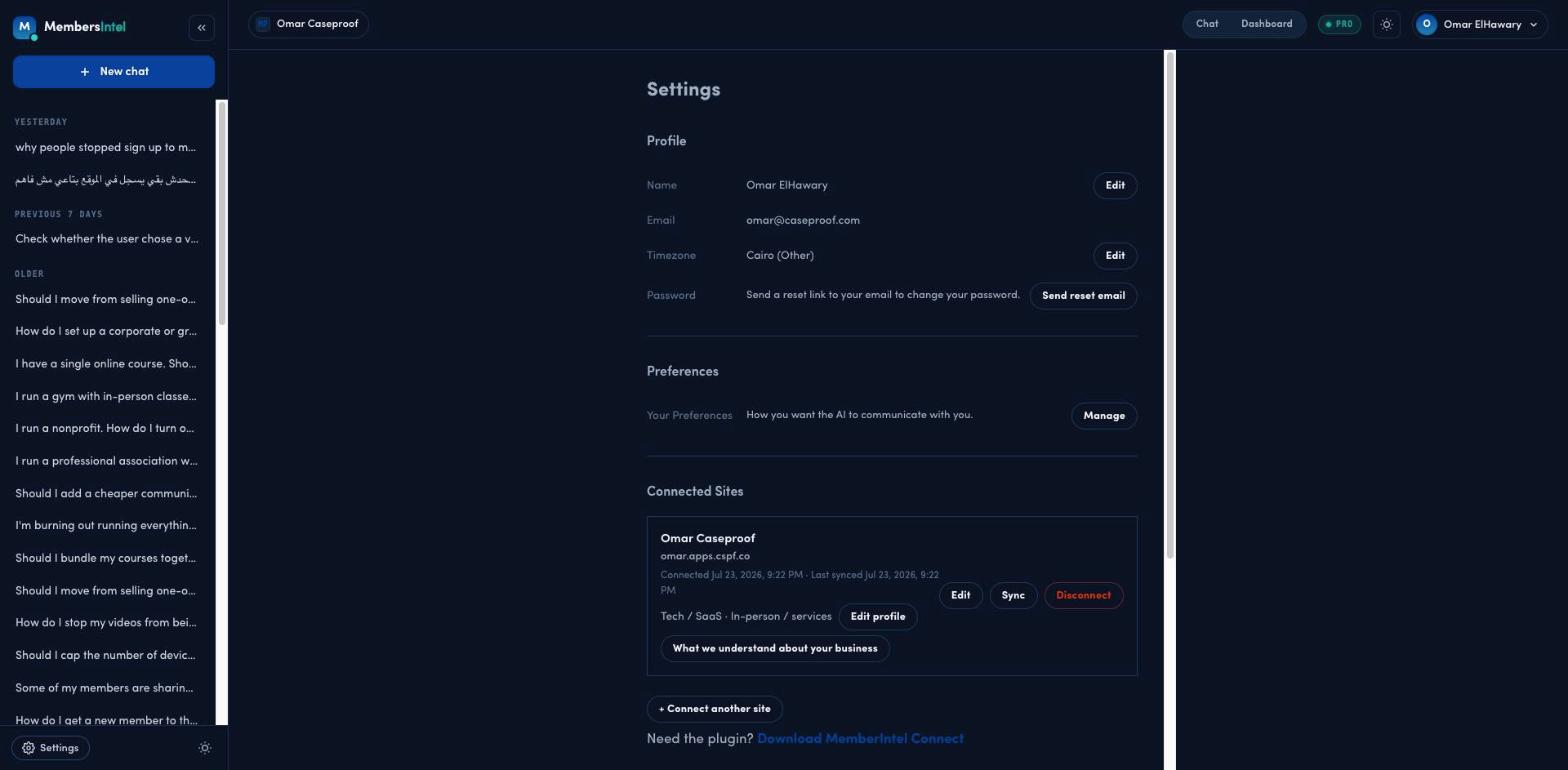
You manage your connection from your MembersIntel account under Settings → Connected Sites. Each connected site shows as a card with when it was connected, when it last synced, and the actions you can take.
Checking your sync status
The site card shows a Last synced time. A recent time means the advisor is reasoning over current data. If it’s old or a sync looks stuck, use the actions on the card to refresh it.
Running a manual sync
Day-to-day you don’t need to trigger syncs — they run on their own and only pull what’s changed. Click Sync on the site card when you’ve just made big changes in MemberPress (a price change, a batch of new members) and want the advisor to see them right away. You’ll also find a Sync button on your dashboard.
The first sync on a large site takes longer because it pulls your full member and transaction history; syncs after that are quick.
Re-pairing or disconnecting a site
To stop syncing a site, click Disconnect on its card. Disconnecting stops future syncs but keeps the history already synced to your account, so reconnecting the same site later picks up where it left off. Use Edit to update a site’s details, or + Connect another site to add one.
Common problems
The connection prompt fails when pairing. This is almost always your WordPress host blocking outbound HTTPS requests. Confirm your site can reach external services over HTTPS — many managed hosts block this by default and your host can enable it.
The sync is stuck or shows an error. Check that you’re running a supported version of MemberPress, then run a manual sync. If it still fails, disconnect and re-pair the site to refresh the connection.
The advisor’s answers look out of date. The advisor only knows what the last completed sync told it. Check the sync status first — if the last sync is old, run a manual one and try again.
If a problem persists after these steps, contact us with your site URL and the last sync time — signed in, use the contact form in your MembersIntel dashboard so we can see your account and site automatically.
FAQ
Why is my data out of date in the advisor?
The advisor reads from the last completed sync. In your MembersIntel account, open Settings → Connected Sites and check the 'Last synced' time — if it's stalled, click Sync and confirm your WordPress site can make outbound HTTPS requests.
Will disconnecting delete my synced history?
Disconnecting stops future syncs but doesn't erase the history already synced to your MembersIntel account. Reconnecting the same site resumes from where it left off.