Connecting your MemberPress site
MembersIntel connects to your membership site through the MembersIntel Connect WordPress plugin. Once installed and paired with your account, the plugin keeps your membership, subscription, and transaction data in sync so the advisor can answer questions about your actual business — not generic advice.
Before you start
You’ll need:
- Admin access to the WordPress site running MemberPress.
- A MembersIntel account (sign up at the MembersIntel site if you haven’t already).
- A few minutes — the plugin install and initial sync are quick, though the first full sync can take longer on sites with a large member history.
Step 1: Install MembersIntel Connect
From your WordPress admin dashboard, go to Plugins → Add New and search for “MembersIntel Connect.” Install and activate it like any other plugin.
If you’re installing manually, download the plugin from your MembersIntel account — in Settings → Connected Sites there’s a Download MembersIntel Connect link — and upload it under Plugins → Add New → Upload Plugin.
Step 2: Connect your site
In your MembersIntel account, open Settings → Connected Sites and choose Connect a site. You have two ways to connect:
- Via plugin (recommended) — enter your site’s URL and approve the connection from your WordPress admin. No copying API keys.
- Manual API key — for cases where you’d rather paste a key by hand.
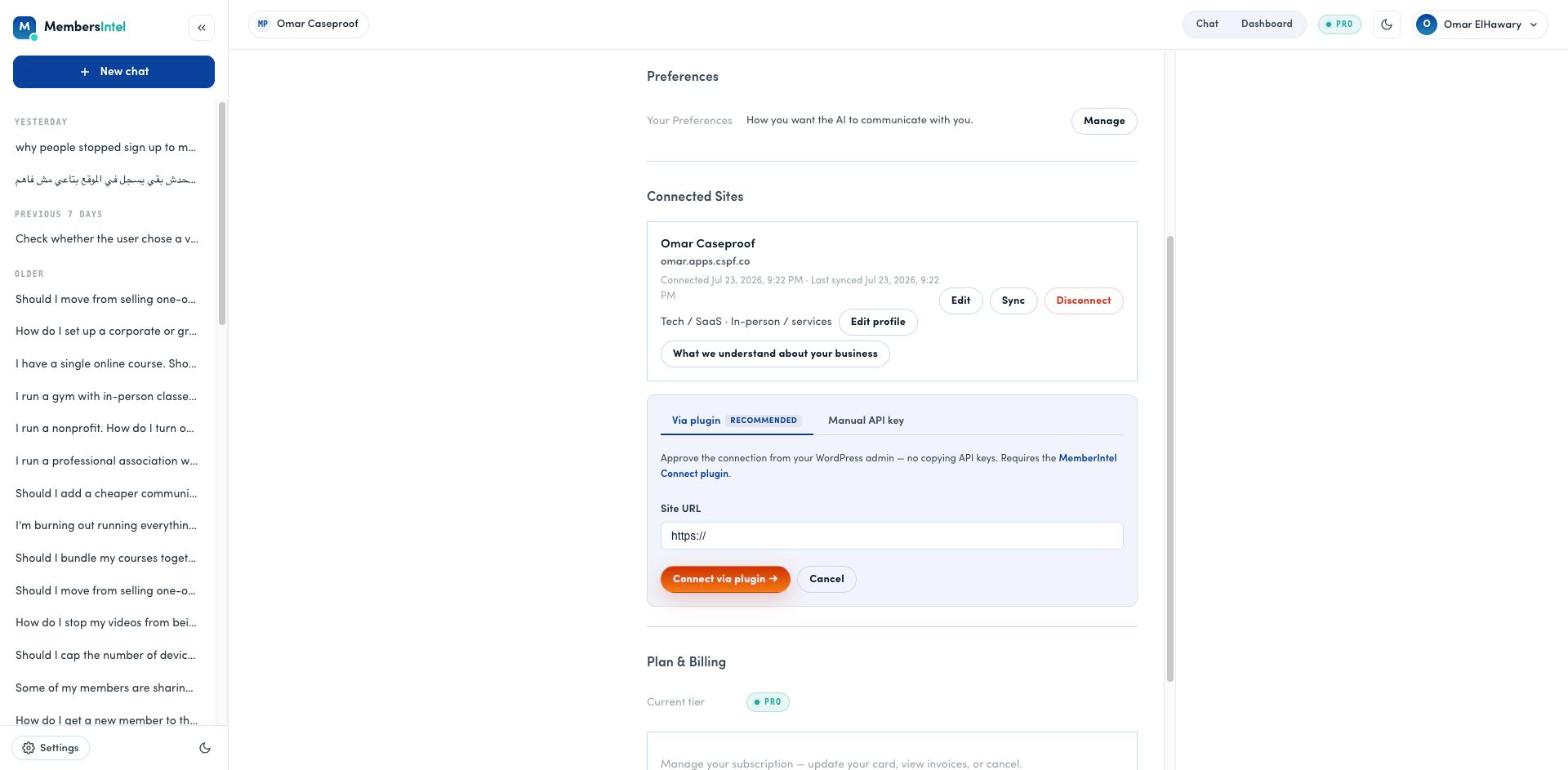
With Via plugin, you’re sent to your WordPress site to sign in and authorize the connection. Log in as an administrator, then review what MembersIntel will receive — read access to your MemberPress members, memberships, transactions, and subscriptions, plus a revocable API key — and click Approve.
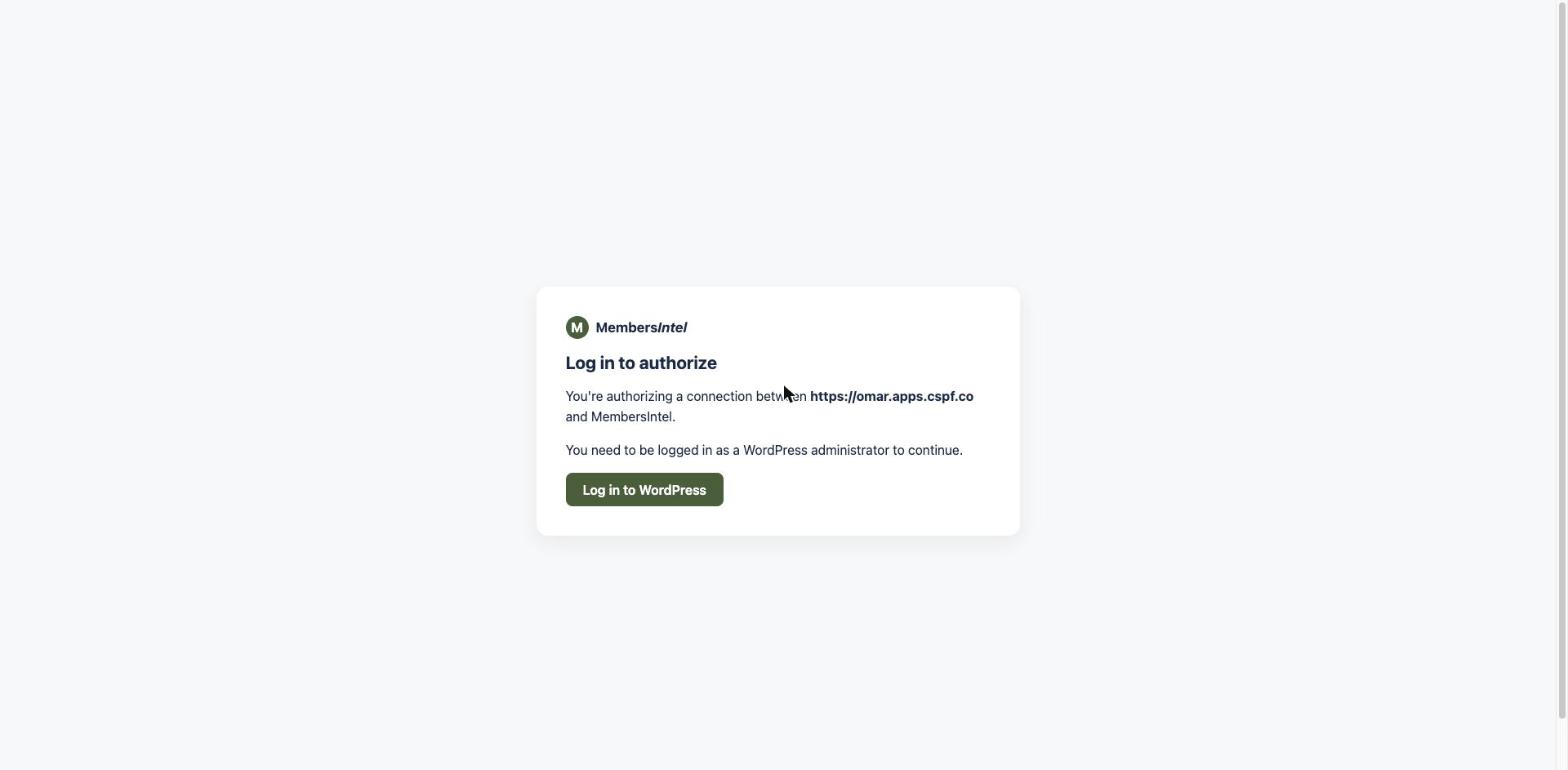
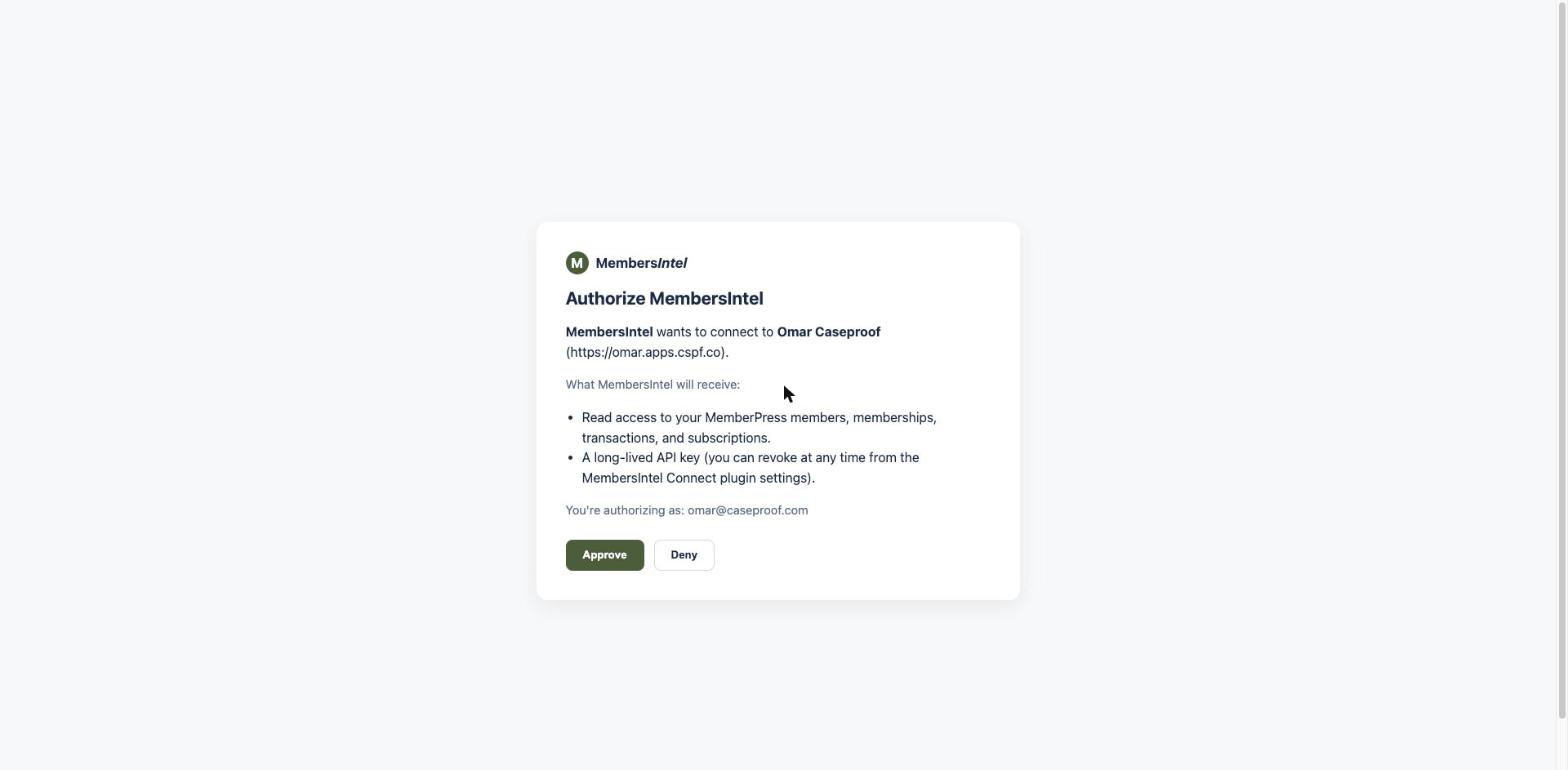
Once approved, you’re returned to MembersIntel and the site starts syncing.
Step 3: Let the initial sync finish
Once connected, the plugin begins syncing your MemberPress data: memberships, subscriptions, transactions, and related activity. Your site card in Settings → Connected Sites shows a Last synced time, and your dashboard shows a sync status. Larger sites with years of transaction history take longer on this first pass; subsequent syncs are incremental and much faster.
Step 4: Start asking questions
Once the sync completes, open the chat and ask about your site — churn, revenue trends, at-risk members, whatever you’re trying to understand. The advisor answers from your synced data, not from guesses.
Troubleshooting
If the connection fails or the sync seems stuck, double-check that your WordPress site can make outbound HTTPS requests (some hosts block this by default) and that you’re running a supported version of MemberPress. You can re-run a sync or reconnect from Settings → Connected Sites — see Managing your connection. If problems persist, contact us — signed in, use the contact form in your MembersIntel dashboard so we can see your account and site automatically.
FAQ
Where does MembersIntel get my data?
From your connected MemberPress site via the MembersIntel Connect plugin. Site facts come from that sync and can't be hand-edited in chat.
Does connecting my site change anything for my members?
No. The plugin only reads data for the advisor to analyze — it doesn't change checkout, access rules, or anything your members see.